Reverse DNS

My previous ISP supported static IPs, but I never bothered to chase after them to provide a reverse DNS mapping for my domain.  Now that I’m using NCF DSL, the admins there are able to accommodate my request for a reverse DNS mapping.

Having a proper PTR record isn’t critical.  For years, even prior to having a static IP, I was hosting a webserver using dynamic DNS.  Once I had a static IP, I was able to reliably host my own email – however there were a few friends who’s ISPs were pretty aggressive about tagging email from my domain as spam.  While my static IP wasn’t on any blacklists, it didn’t pass the Forward Confirmed Reverse DNS test (FCrDNS).

As of this weekend, lowtek.ca will pass a FCrDNS test – which in theory will help email flow more smoothly.

Most of my friends have opted for much simpler configurations.  Using either a hosting company to provide their domain services, or in at least one case using the free version of Google Apps For Your Domain to handle email.  Certainly much simpler – but from my point of view, not nearly as much fun.

Puppy Linux 4.00 with VMWare Player

Even if you’ve been living under a rock for the last few years you’ve probably heard about virtualization, but you may not have taken the plunge quite yet.  LiveCD images are a great way to toy around with new operating systems, but using virtualization can make it an even nicer experience.  The VMWare Player is free, and allows you to run pre-configured virtual images (appliances).

After my recent experience installing Puppy Linux on an old laptop, I wanted to experiment a bit more using my desktop but didn’t want to give up my normal Ubuntu desktop experience.  Being able to run two operating systems at the same time is useful.

Google will help you discover how to do this, however my goal is to provide specific Puppy 4.00 instructions, and possibly inspire someone to try out virtualization if they haven’t done so yet.

Continue reading “Puppy Linux 4.00 with VMWare Player”

DIY Solid State Drive

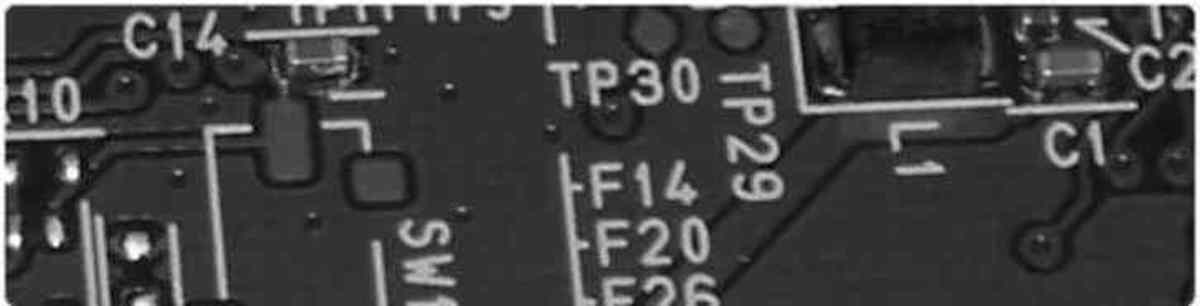
Now with the CF to 2.5 IDE adapter in hand, I’ve basically got a solid state drive for my laptop.  The trick of course is making it all work.  The first step is to get it physically installed in place of the failed hard drive.  The only tricky part here was determining where pin 1 was.

The adapter I bought has a little white triangle that identifies pin 1 (in the picture above, this is the left most pin).  The existing drive was a Hitachi DK227A-41.  Google helped turn up a useful diagram which helped me identify pin 1.

HITACHI DK227A SPECIFICATIONS REV. 1, K6601560 97/11/08

The second bit I stumbled a bit on was getting the laptop to identify this as a drive.  The CMOS auto setting didn’t detect it as a drive – so I needed to use the USER setting to punch in the right values.  I ended up using the values I found in this SanDisk document, but I’m certain others will work.  I also needed to dumb down the BIOS settings to allow me to boot from this drive, this meant turning off some of the fancy read pre-fetch and DMA modes.

As this is an old laptop – 233MHz with 64MB of RAM, I run Puppy Linux on it.  My previous experience installing Puppy on this particular laptop was painful, as it only has a floppy drive (no CDROM) and at the time I failed to find a boot floppy that enables USB support such that I could boot Puppy from it.  The route I took at the time was to format half of the 4Gig drive as DOS and make it bootable, then find an old Linux distro that had a floppy based install, borrow a wired PCMCIA network card from work and download the DOS based Puppy install over the network to the DOS partition.  Once there, I could reboot and install Puppy natively.  That was the story for Puppy 2.01.

Puppy 4.00 is an improvement in a number of areas.  WakePup is now something that comes as part of the LiveCD allowing me to create a boot floppy using my desktop system.  This boot floppy knows how to boot a USB key version of Puppy on this old laptop.  It just works.

Other nice features of Puppy 4.00 is the battery indicator now knows how to talk to the hardware in the laptop, supplying charge remaining information.  Additionally, the power off sequence works to actually shut the laptop off (2.01 didn’t).

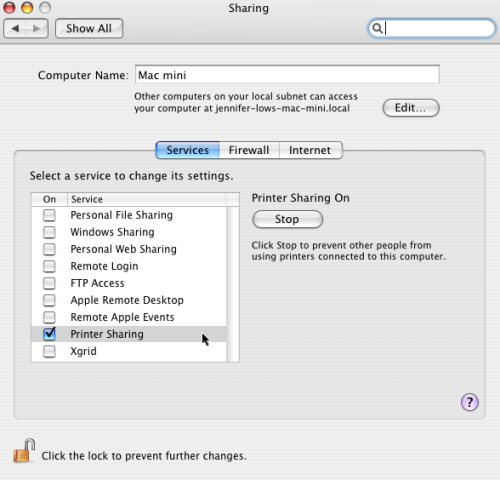
With the laptop 1024×768 screen matching the LCD monitor Jenn uses on her Mac Mini – TightVNC on Puppy makes it this old laptop into a really nice wireless Mac terminal.  The default browser is SeaMonkey, but Firefox 2 is available in the package repository.

Using the DIY SSD is weird, the laptop is almost totally silent and for whatever reasons the drive light indicator doesn’t blink at all – so you have no way of knowing that you’re waiting on disk activity.  The performance seems to be about the same as it used to be, but no direct comparison is possible with the old drive making grinding sounds.  I’m running with a swap partition on the CF card, but even with only 64MB of RAM – running the common application load on this laptop I’m using zero swap. (hooray Puppy)

Some folk get worked up about reducing the number of writes to a CF card, I’ve decided not to worry and see how this works out.  The number of write cycles is fairly high on modern cards (1 or 2 million), I believe they have built in wear-levelling, and they are cheap.  I know my puppy powered laptop isn’t making that many writes to the filesystem, so I suspect the DIY SSD will last longer than the laptop.