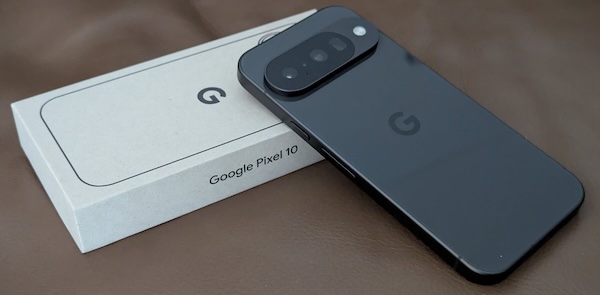
Google Pixel 10

I didn’t need a new phone, the Pixel 7 I’d been using for almost 2 years was doing everything I needed. The battery life was good, it still felt fast, and the photos were great.

I think my downfall was that I needed to upgrade the kids to newer (working) phones, and managed to get a couple of Pixel 7 Pros for a great price. This meant my phone, while still great, was the lowest spec phone in the family. I think since Black Friday we’d seen cell phone plan promotions that included the Pixel 10, leading to a lot of them hitting the market (new in box). The asking price was often $750 with low points being around $600, still a bit high for my frugal self.

Then a friend of mine did the plan upgrade dance and had a Pixel 10 he was willing to let go a bit lower than the typical asking price – while I didn’t need an upgrade – now I’m rocking the Pixel 10.
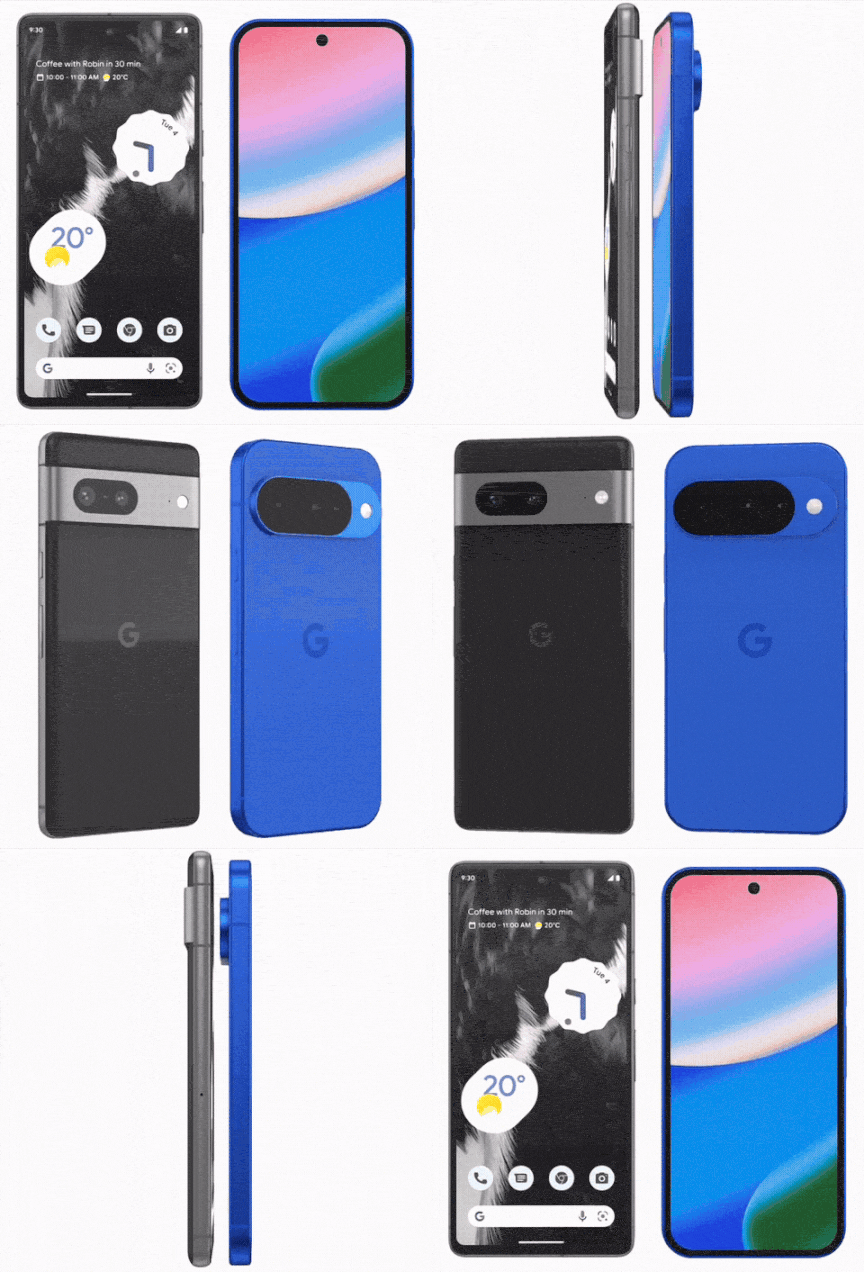
Above is an animation that compares the 7 vs the 10. The specifications say the 10 is slightly heavier than the 7, but the size of the phone is a tiny bit smaller. Notable are the more pronounced rounded corners. The 10 feels smaller in my hand, it’s still a giant phone as all phones seem to be today, but something about the shape makes it feels smaller.

The internals are all newer, better, faster. The 10 has a laundry list of improvements over the 7: A 5x optical telephoto camera; Satellite SOS service; 12GB RAM; updates until 2032.

If you want more comparisons I found this article which runs down a comparison of the 10 vs. many of the previous models.

I was able to move my old Pixel 7 along for a fair price, it turned out the person who bought it from me was someone I used to work with. Nice.
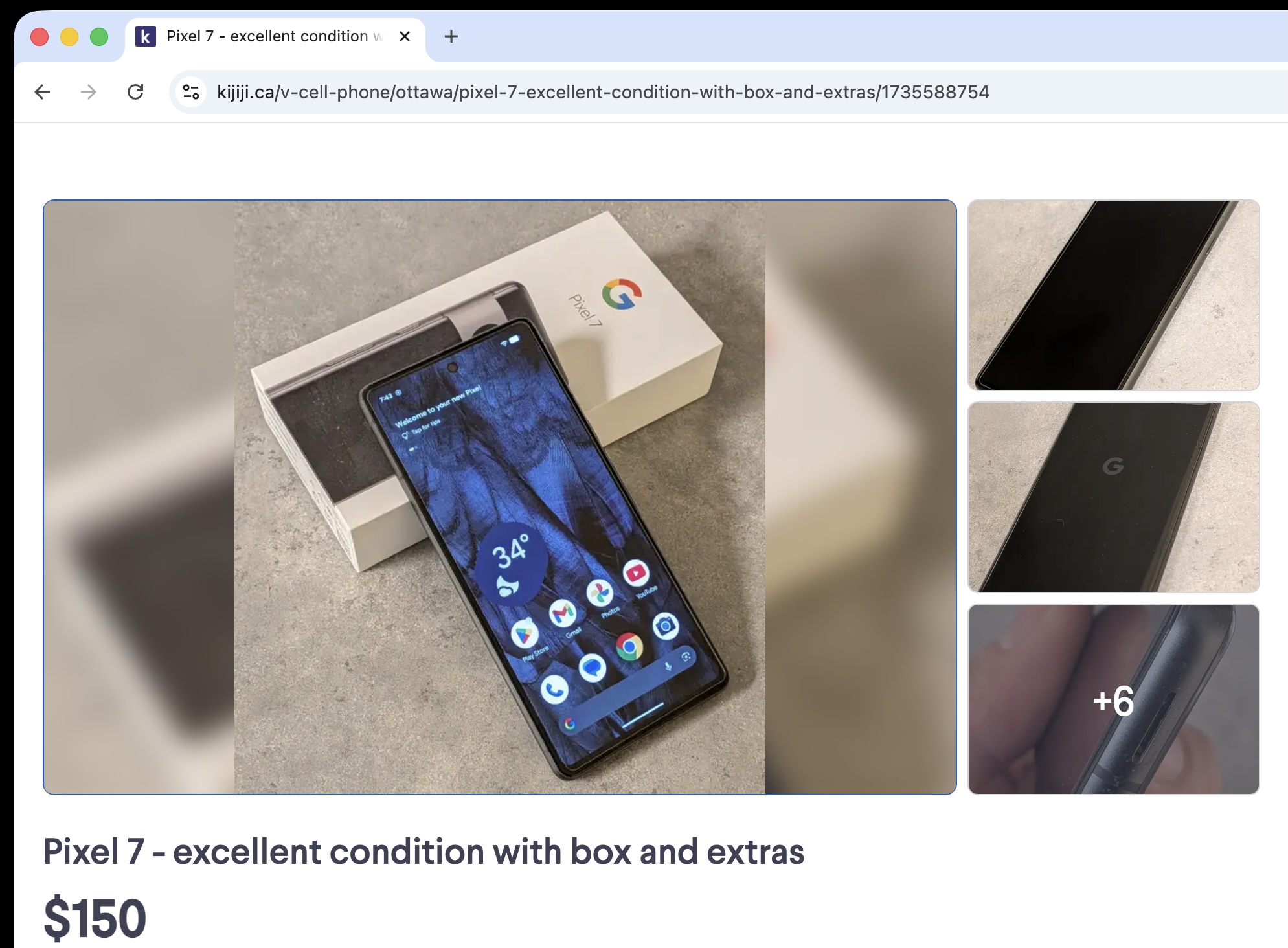
Over the 2+ years I used it, it only accumulated 293 charge cycles – and the battery should be good for 80% capacity at 800 cycles. It’s still got more than a year of Google support and after that you can always go to GrapheneOS or LineageOS.

Back to talking about the Pixel 10. Let’s start with the Google AI summary of the upgrade from the 7 to the 10.

Upgrading from the Pixel 7 to the Pixel 10 (2025) offers significant improvements in battery life, display brightness (3000+ nits), and processing power (Tensor G5), largely addressing the heat and battery degradation issues found in older models. The Pixel 10 features a smoother 120Hz display, faster charging, and 12GB of RAM compared to the 7’s 8GB

As usual, I grabbed a generic bumper case off Amazon, which came with a screen protector. I particularly like the cases that have extra bumps on the corners, both for fall protection – but also I find them handy to help grip the phone.
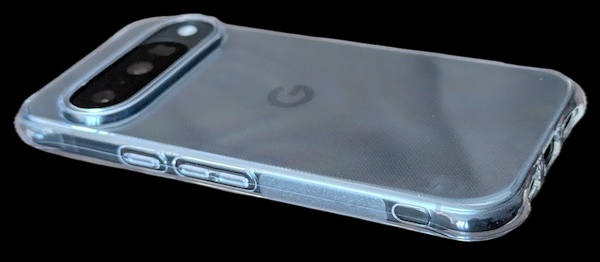
Unfortunately the screen protector didn’t work with the finger print sensor. The 7 used an optical sensor, whereas the 10 uses an ultrasonic sensor. The generic screen protector was too thick preventing it from working. Google has introduced a ‘made for Google‘ certification for screen protectors – boo. While face unlock worked, I’m not sure I wanted to be stuck with that or a password. I broke down and ordered Spigen certified screen protector, $24.99 which turned into almost $30 after tax but next day delivery.

The Spigen protector worked without issue, and the kit I ordered actually included two protectors so the price seemed a bit more worth it. The installation is a bit funky, but worked just like their video describes. I did need to use the squeegee tool to remove the bubbles, but it went smoothly.

Aside from the small issue with a generic screen protector and fingerprint recognition adopting the new phone was straight forward. The migration process from the 7 to the 10 went smoothly. Even the eSIM just magically moved over. All in all it was an easy upgrade.

A few weeks in to using it, I’m still pleased with the upgrade. I keep finding reviews which say all of the things better than I could.
Signal “desktop” on an Android Tablet

I’m all in on Android. I actually like Apple products just fine too, I’m composing this post on a M1 Macbook Pro. In the past I’ve toyed with lots of Apple hardware, like the 2nd generation iPod Touch. When Google released the G1 I was hooked, a phone with a keyboard? It’s like a tiny computer in your pocket that can also make phone calls.  Since then I’ve been through a lot of Android devices, both phones and tablets.

Privacy is also important to me, and Signal is a great match for my messaging needs. It has always bothered me that while you can get a very nice desktop experience linking your “primary device” (aka your phone) to your laptop, it wasn’t really possible to run Signal on an Android tablet as a linked device. The folks at Signal enabled the iPad as a linked device, but no love for Android tablets yet.

Recently I came across a solution. Molly.im. This allows my tablet to run a version of the Signal client (Molly) and be a linked device. While I almost never am far from my phone, sometimes I’m doing something on my tablet and switching devices is a pain. I also use the Note to Self to move data between devices (links, photos, files).

Molly is a fork of the Signal client code for Android. From a security point of view, it’s using the same Signal protocol – so your data is encrypted end to end. You do have to decide to ‘trust’ that the Molly code hasn’t been compromised in some way and will leak your data. This ‘trust’ is the same trust you are giving the folks that work on the Signal client code (or the desktop application). While it is a little uncomfortable to trust yet another group of people developing some code, we do this all the time with all of the apps we run on our devices. For me, this small risk is well worth the utility of having a linked Signal client on my tablet.

Avoid Device Linking

While it may be tempting to link your Signal account to your desktop device for convenience, keep in mind that this extends your trust to an additional and potentially less secure operating system.

If your threat model calls for it, avoid linking your Signal account to a desktop device to reduce your attack surface.

The good news for me, is my threat model doesn’t cause me to be concerned about having my devices linked and spreading my private communication across multiple devices that I own. Still, this is a decision everyone should think through.

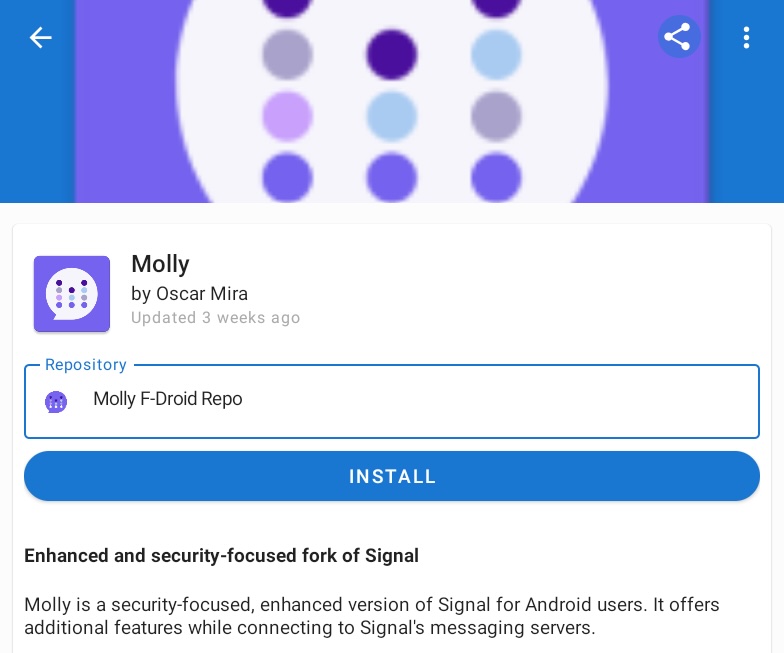
Getting setup with Molly is very easy. You start by installing F-Droid, an alternative app store for Android. This is an apk download and install, you’ll likely need to approve/enable the installation of ‘side-loaded’ content on your device.

Once you have F-Droid installed, open the app. Let it do the first time setup where it will update the various repositories. This process will probably prompt you for some additional permissions, you’ll probably want to permit them as you do want this new ‘app store’ to install more apps, and alert you when there are updates. It’s always good to pause and think about the permissions being asked for, but F-Droid is a well known application.

Now we need to configure the Molly application repository. While F-Droid comes with a built in ‘store’ of content, it also supports adding additional content sources. Go to the Molly webpage, and click on the Molly F-Droid repository. This will configure F-Droid so that it can see the Molly application. There are two versions of Molly, the FOSS one removes some of the Google integration and may be less compatible with the original Signal app – let’s pick the non-FOSS version.

At this point, it should be just like installing any application – but instead of using the Google Play store, you’re going to use F-Droid to install Molly.

Molly can act as a primary Signal installation, or as a linked device. Assuming you were able to install Molly on your device, let’s walk through the simple steps to get you linked to your existing Signal account.

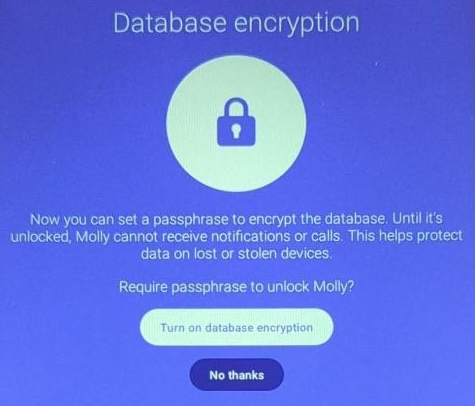
When you launch Molly for the first time you will be prompted to choose additional database encryption. This is a security trade off, being asked each time to unlock the database may be annoying, but it will give you better security if your device is compromised.

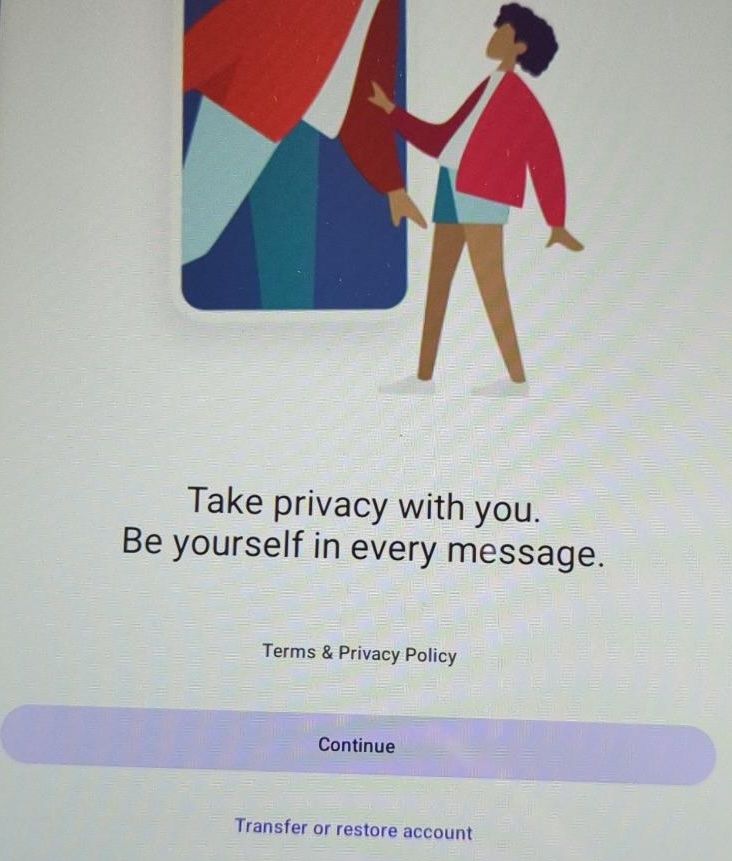
Next we see the normal Signal launch screen.

We can just hit “Continue” here to move to the next screen.

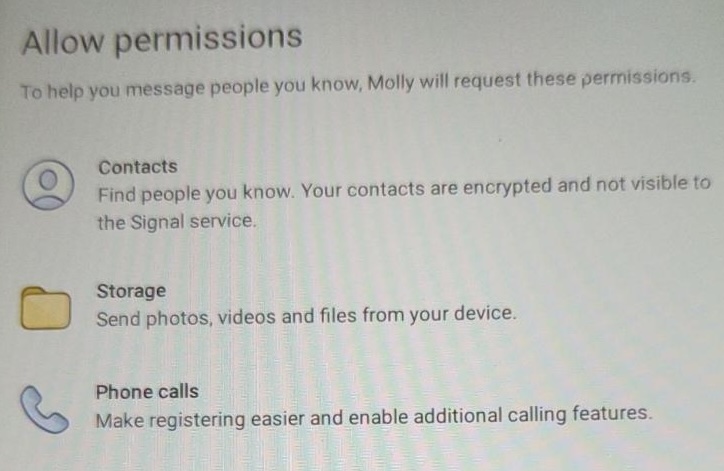
This is where you can choose how many Android capabilities you want to grant the Molly app. I’ll leave this up to personal choice, I didn’t give it permission to my Contacts, but granted the others. Both Signal and Molly are good about using very limited permissions.

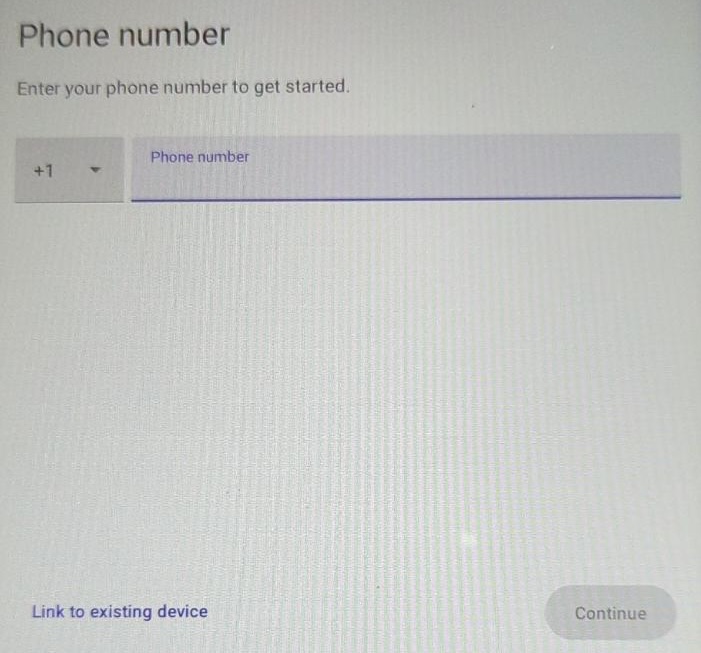
Next is the registration screen. While we could set this device up as a primary Signal device and link a phone number, we don’t want to do that in this case. Do not enter a phone number here. The “Link to existing device” option in the lower left is what we want to do. This will make this device act just like the ‘desktop’ version of Signal.

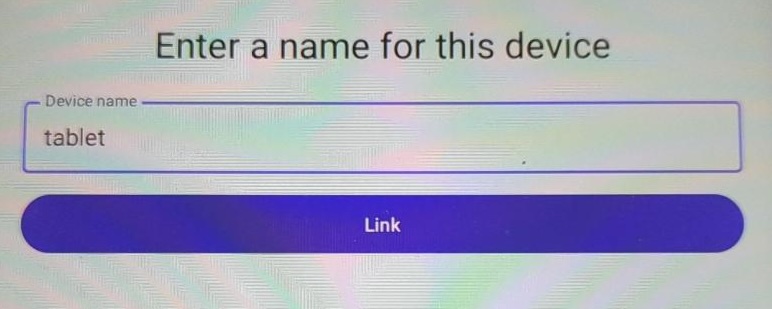
Here we get to give this device a name. Pressing the “Link” button will display a QR-Code we can scan from our primary device and connect the two. The Signal documentation talks about linked devices, but with Molly we bypass the limitation of multiple mobile devices.

That’s it, now enjoy Signal on your tablet via Molly.

Google Pixel 7

The Pixel 4a was a fantastic phone for me. I bought it new from Google back in the fall of 2020 when it was a current model. The end of support date snuck up on me, had it already been 3 years? I noticed in October I hadn’t had a reboot (and thus a security patch) in quite some time. The 4a had a surprise extra update in November – but this was clearly the end of the line.

The 4a was a change for me, for the most part I’d bought gently used phones at around the $200 price point that were 2-3 years old, and then used them for a year and a bit. This gave me a new toy regularly, and was fairly cost effective. Still, I was probably spending about $500 over 3 years easily -this helped me justify the purchase of a new 4a. Little did I know how much I’d enjoy having the 4a and not doing the upgrade dance regularly.

In the first weeks of 2024, my Pixel 4a was still performing well. I’d generally only need to charge it every second day. Yes, over time the battery had gotten a little worse – but not by much. The camera continued to be amazing. And wrapped in a bumper case and screen protector the phone itself was in mint condition. If it was still getting regular security patches from Google I’d have no problem continuing to use it.

Of course, LineageOS is an option. Migrating to this would give me a community supported version of Android 13. A few worries kept from from this path. I use my phone for work, and have the mobile device management stuff installed, I wasn’t convinced this would work smoothly with LineageOS.. but it has in the past (honestly I think I was looking for reasons to upgrade). The migration of apps also seemed daunting. While most things have a ‘cloud’ story and are linked to various accounts etc, some of the games I have don’t have a backup/restore story. The other pain is the lack of SafetyNet support, practically this means only Netflix won’t work for me (again, I’m looking for an excuse).

Honestly, looking back, if I’d gone through the migration effort and moved to LineageOS it would have all worked out. I would have had my security updates but been stuck back on Android 13. The work device policy is good with support for devices back to Android 12 currently. There is also a good chance the WorkProfile is still properly supported in LineageOS (it was in the past). I would have lost state in a few games, but that is minor.

Post Black Friday and leading into Christmas and Boxing week there were some crazy sales on mobile plans in Canada. CostCo was apparently offering a plan that was very low and provided a Pixel 7 on a 2 year contract for $1/mo. This has the result of many BNIB phones showing up on the local used market.

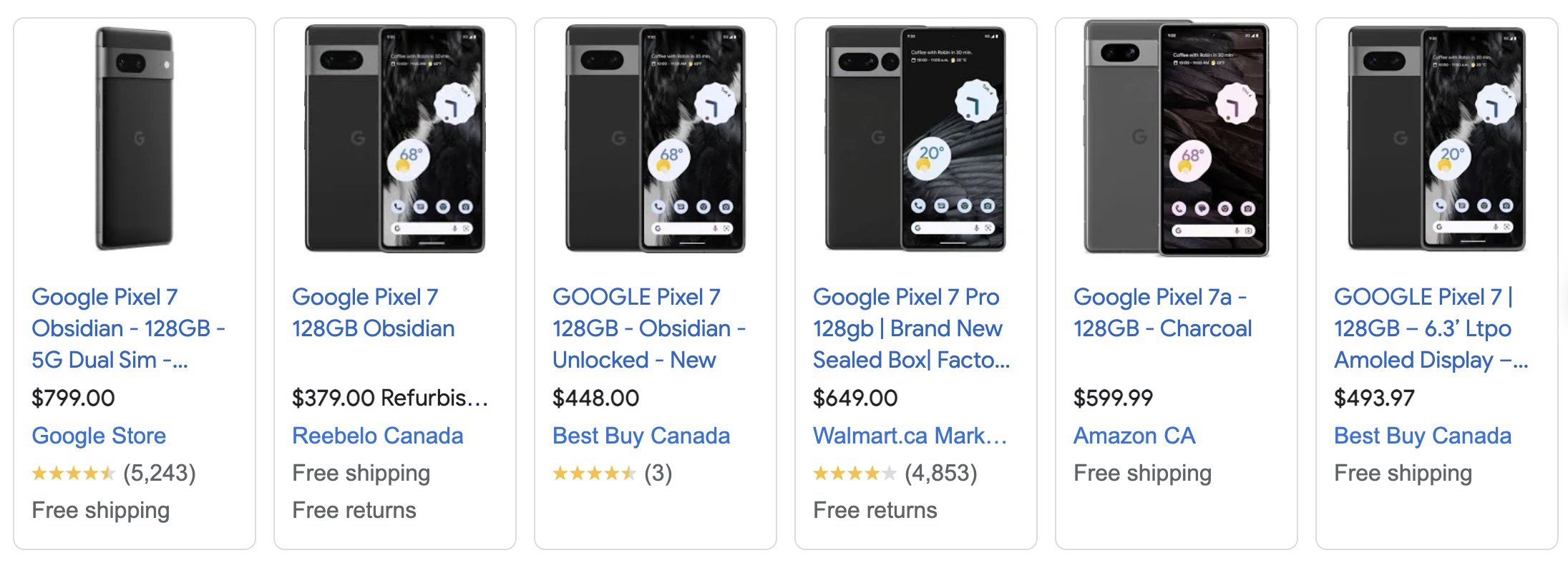
The Pixel 7 still lists for $799 directly from Google. Many of the used market phones where listing between $350-$500 still with the security seal in place. Relative to Google the local pricing is lower for a BNIB or refurbished options from retail stores.

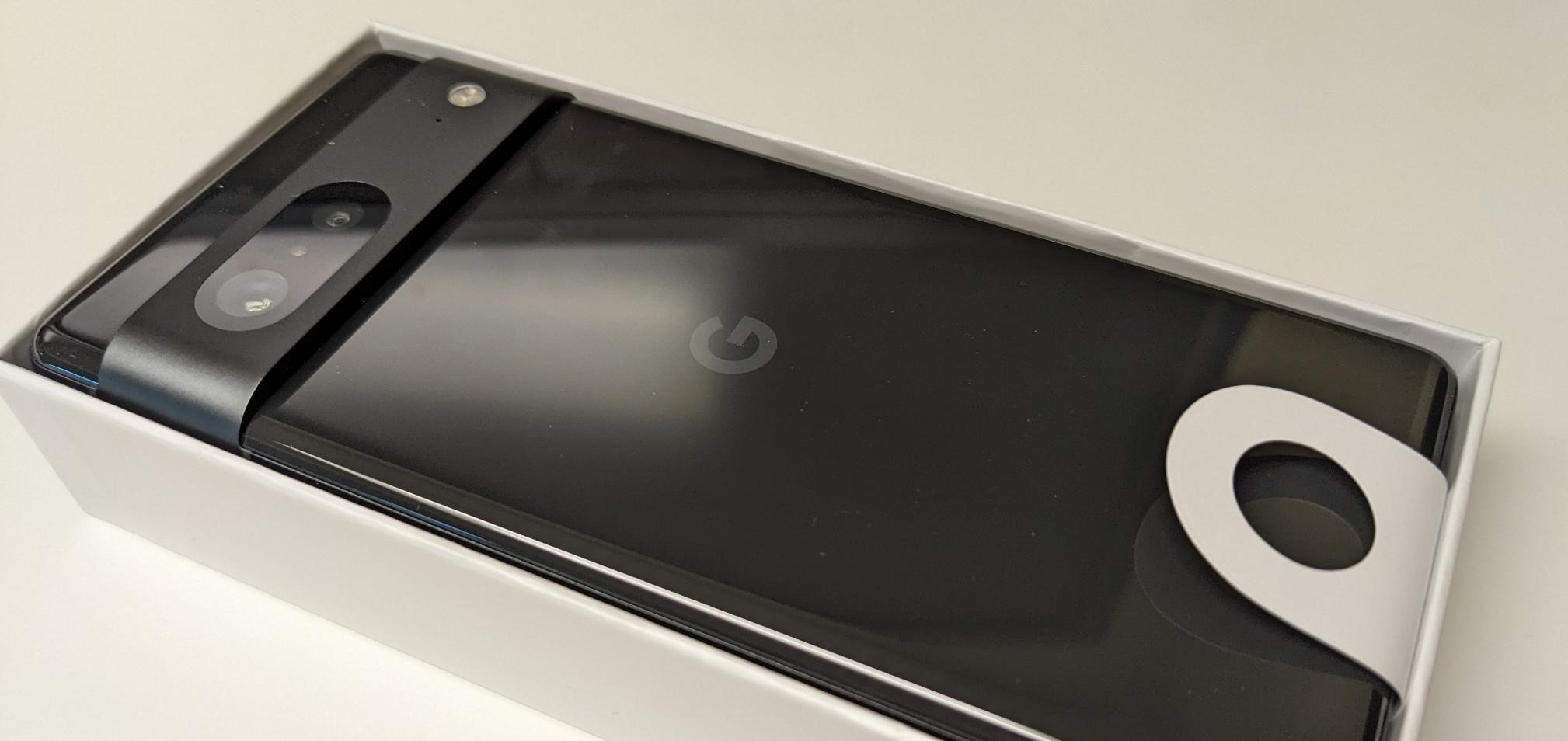
I found someone listing one for $300, and it check out as legit. He’d done a plan upgrade/renew back in October gotten a new Pixel 7 but already had one, so he had this sealed BNIB one to sell. I suspect he’d started at a much higher price, but the recent glut of new phones on the used market pushed his price down. There were other similar phones for $330 to be had. This price point made getting a phone upgrade a smart move for me as it still has 3+ years of support from Google.

There are plenty of phone comparison sites, but let me run down things that I see as trade offs.

  • I’ll probably miss the back fingerprint sensor, the in screen optical one is “ok” but not nearly as reliable.
  • The 4a has a 3.5mm headphone jack, this is a useful way to interrupt bluetooth connectivity nonsense with my car/ bluetooth headphones. I can use a USB-C adapter, but it’s not the same.
  • The Pixel 7 is bigger, there are pros and cons to a larger phone.
  • As stated above, the Pixel 7 is still currently supported. This is a big win.
  • The camera is better in the Pixel 7, but the 4a certainly held it’s own. Very minor difference.

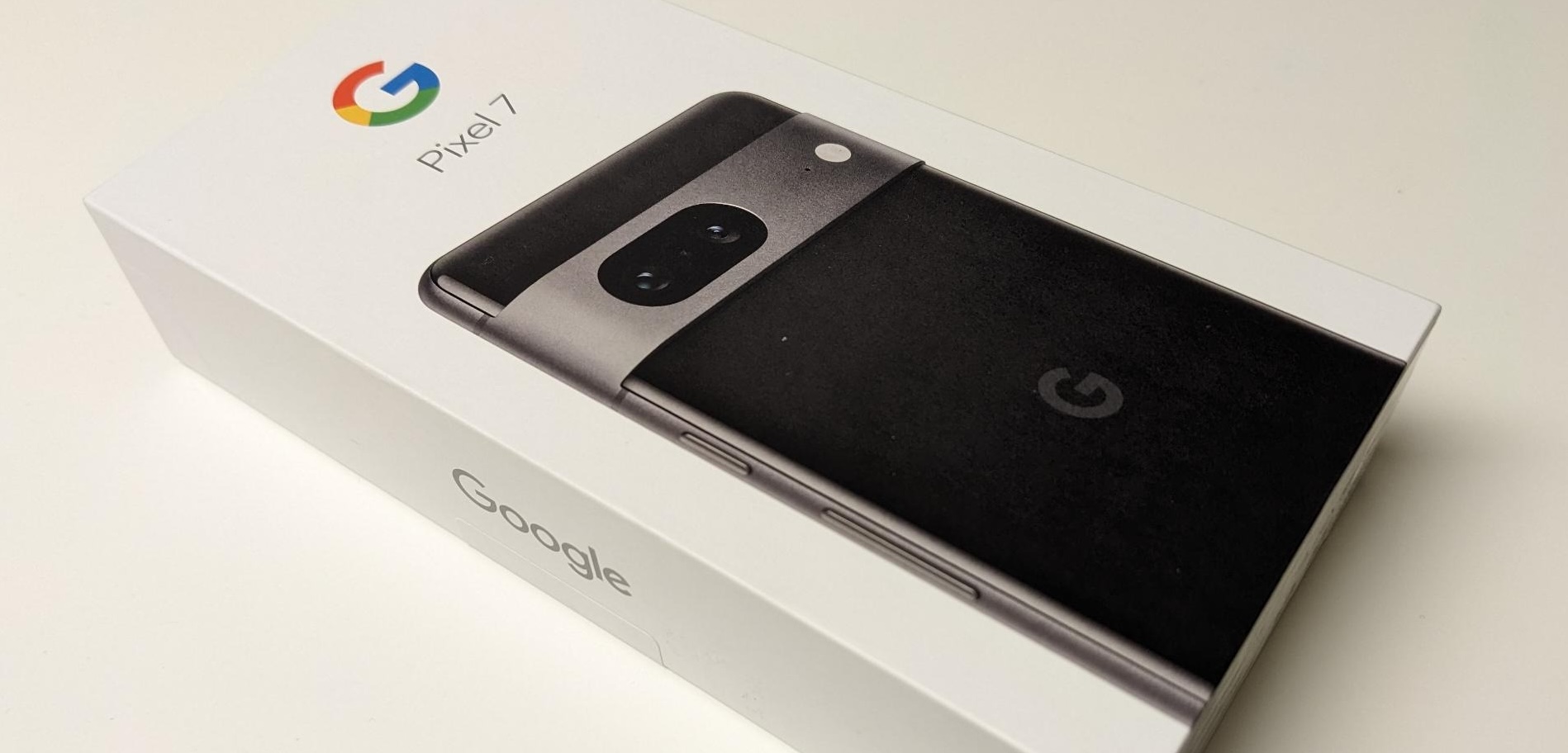
The Pixel 7 is a very pretty phone, I’m not a fan of the all glass back, but it is very sexy. Of course, the first thing is to buy a case and screen protector before I even take it out of the box. I grabbed a case very similar to the one I’ve had on my 4a from Amazon. I headed to eBay to get a screen protector from a seller I’ve used previously. This meant a few day wait, but that wasn’t a big deal.

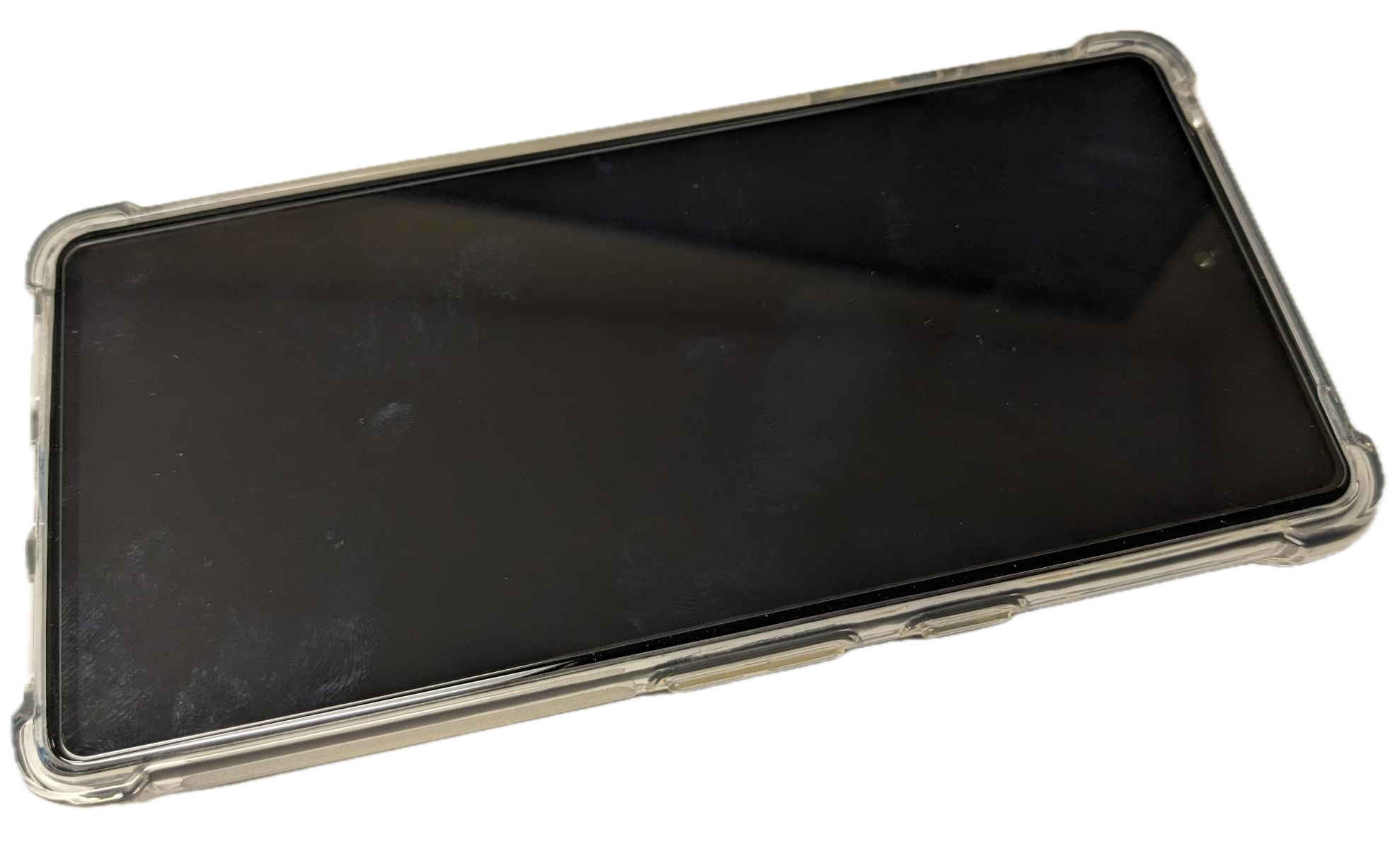
All good – now it’s wrapped and ready to roll. The bumper case has these nice extended corners which add protection, but also give you something to grip onto. There is a subtle roughness on the sides too, making the phone less slick. The screen protector doesn’t have any cut-outs for the camera, this is similar to the one I had on my 4a and it had no negative impact for my use.

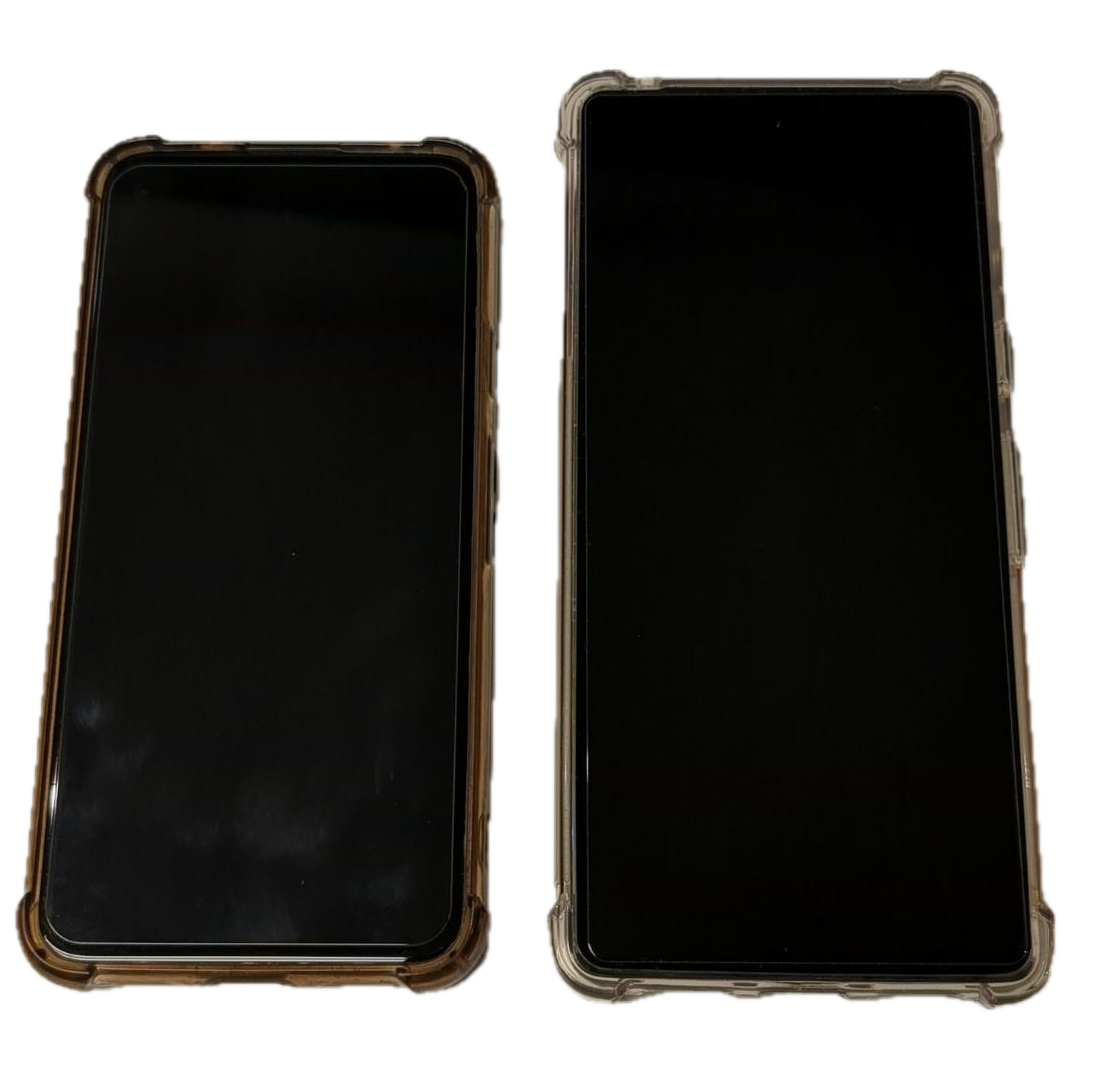
The phones are significantly different in size, with the Pixel 4a on the left and the Pixel 7 on the right. I’ll point at a comparison article if you want to look at the specifications side by side. I was interested in the in pocket weight, including the case. The 4a is 175g vs the 7 at 231g – yikes, 32% heavier. This is enough that you notice the difference, but I’ve gotten use to the added heft and size.

Continue reading “Google Pixel 7”